.png?width=250&height=33&name=Logo-Long-Dark%20Green%20(1).png)
Once you log in to your Provenance account, select
Proof Points Navigator using the menu on the left-hand side. Use the search bar to look up Vegan and select the Vegan Proof Point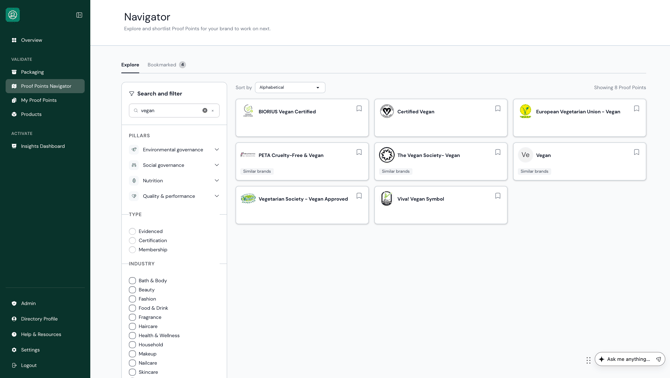
Step 2 — Start a New Submission
You will land on the Vegan Proof Point page where you can see the criteria and evidence requirements for the Proof Point. Read this over and ensure your product meets these requirements then press continue to submit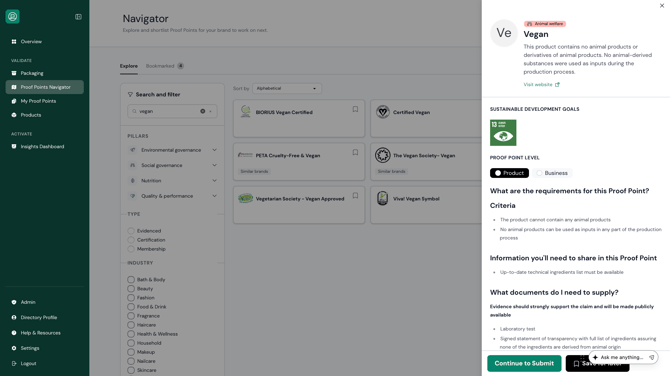
Step 3 — Review the “Before You Start” Information
A Before you start screen will appear summarising the three steps involved: select products, add ingredients, and review and submit. You will also see the following notice:
|
“Evidence will be made publicly available. Proceed if you agree with this.” |
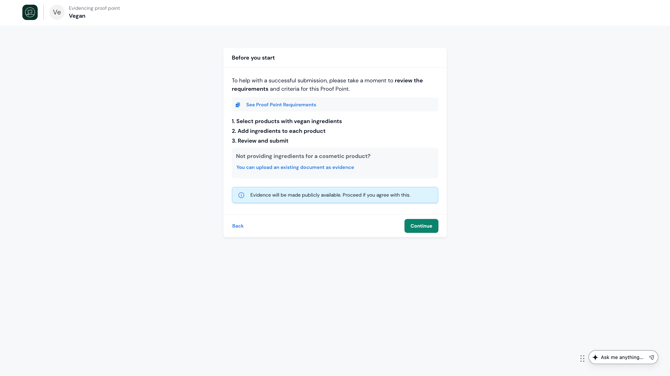
By selecting Continue you are confirming your consent for your evidence to be made public. Select
Continue when ready.
Step 4 — Select Products
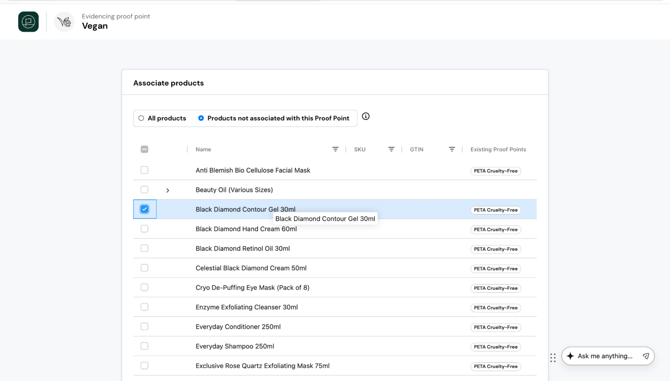
On the Associate products screen, select the products you want to include in this submission. You can toggle between All products and Products not associated with this Proof Point. Select Add products to proceed.
Step 5 — Add Ingredients to Your Products
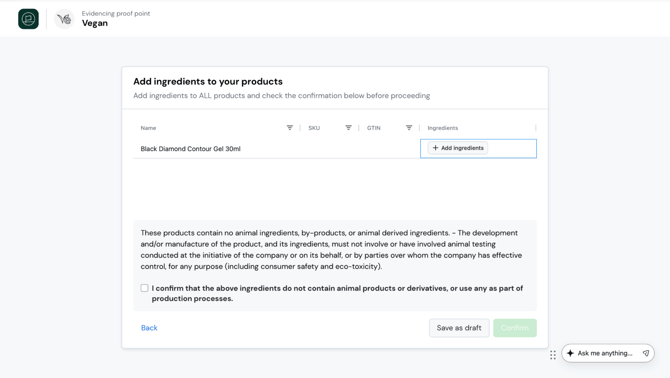
|
⚠️ Cosmetic products only. If your product is a food or drink, skip to Step 7 and upload your evidence manually. |
You will now see the Add ingredients to your products screen listing each product you selected. Select + Add ingredients next to a product to open the Product ingredients assistant.
Step 6 — Paste the Ingredient List and Check the Database Match
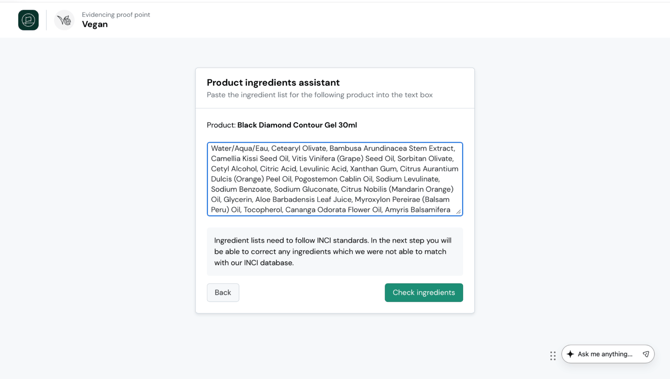
Paste your full ingredient list into the text box for the relevant product. Ingredient lists must follow INCI (International Nomenclature of Cosmetic Ingredients) standards — use the ingredient names as they appear on your product packaging or specification sheet.
Select Check ingredients. Provenance will attempt to match each ingredient against its INCI database entry:
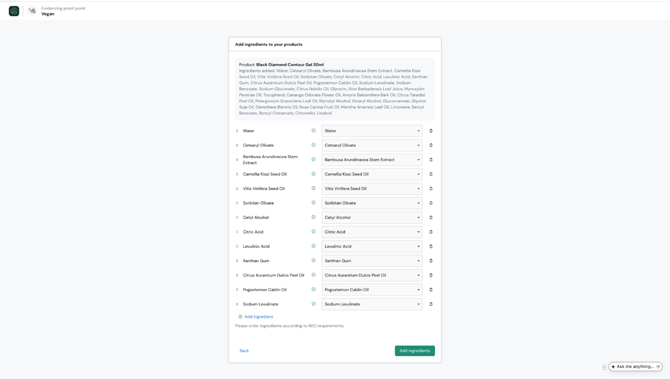
- Ingredients with a green tick have been successfully matched.
- Any unrecognised ingredients will be flagged with a warning banner.
|
⚠️ If any ingredients cannot be matched, do not force an incorrect INCI match. Instead, proceed to Step 7 and submit your evidence manually using the Statement of Transparency template. |
If all ingredients are matched, read the vegan declaration at the bottom of the screen and check the box to confirm:
☐ I confirm that the above ingredients do not contain animal products or derivatives, or use any as part of production processes.
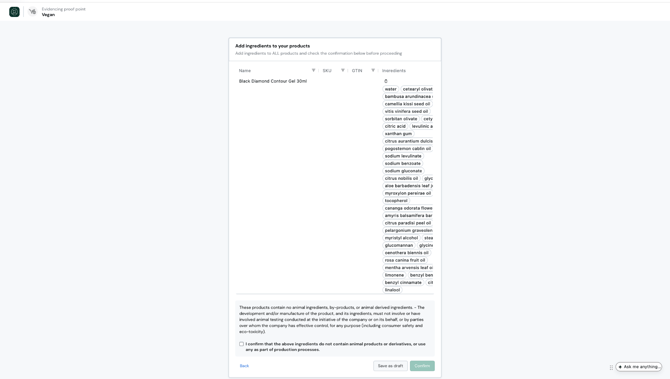
Select Confirm to proceed, or Save as draft to return later
Step 7 — Upload Supporting Evidence
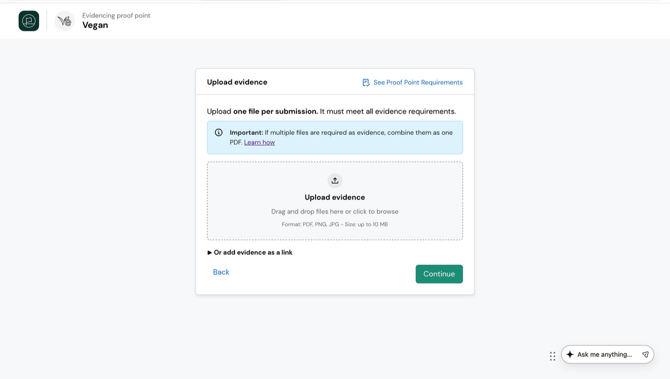
On the Upload evidence screen, upload your evidence as a single file. Accepted formats are PDF, PNG, or JPG up to 10 MB.
- If you have multiple documents, combine them into one PDF before uploading. Select Learn how for guidance on merging files.
- To add a URL instead, select Or add evidence as a link.
If your product is a food or drink, or if any ingredients could not be matched to the INCI database in Step 6, you must complete and upload the Statement of Transparency: Vegan Claim template as your evidence or provide your own state that aligns with the template. Fill in all required fields and upload the completed document as a PDF.
After uploading your evidence ensure you add the associated products
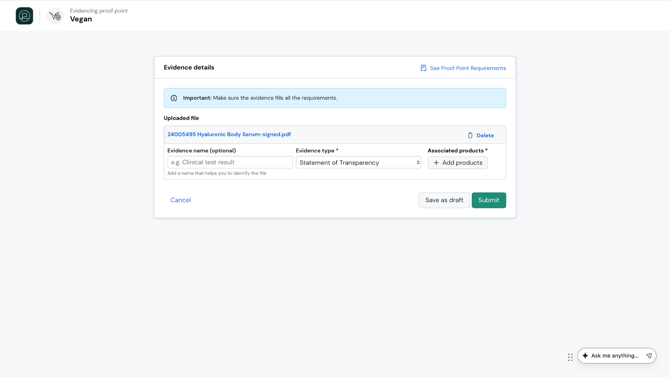
Select Submit to submit your evidence for review.
If you have any questions throughout this process you can use the chatbot at the bottom right-hand side of the page. The chatbot will search our Help Centre, or put you in touch with a member of our team.